
In waatee Live Chat, assigning agents and joining conversations is key to delivering personalized human support. Agents can take over a chatbot session, optionally send a signature message, and manage conversations efficiently. This ensures clear ownership and accountability while maintaining a professional user experience.
This guide explains how agent assignment works, how to join a chat, what happens to previously joined agents, and how to customize the signature message that welcomes users.
Feature Breakdown #
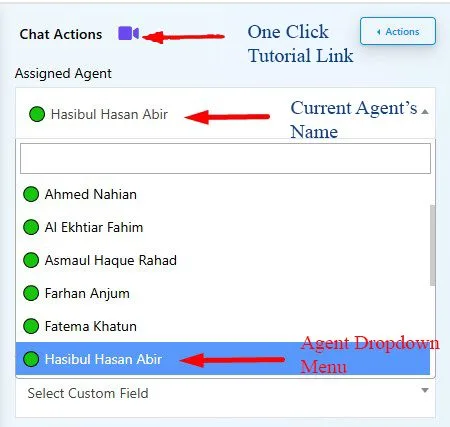
1. Agent Assignment Panel #
- Found under the “Chat Actions” section.
- Displays the currently assigned agent.
- Allows selection of a new agent via the Agent Dropdown Menu.
- When a new agent is selected, the existing agent is automatically removed from the session.
2. Join Chat & Signature Message #
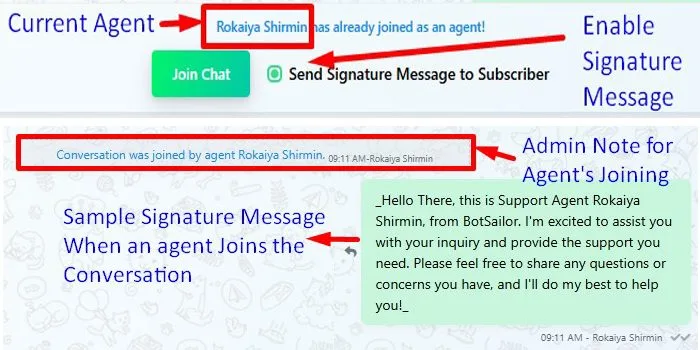
- Clicking Join Chat gives the agent control over the conversation.
- Send Signature Message to Subscriber is an optional checkbox.
- When enabled, it sends a personalized greeting from the agent.
3. Signature Message Behavior #
- Displays as a green bubble inside the chat.
- Announces the agent has joined (e.g., “Conversation was joined by agent Rokia Shamrin.”)
- Includes a pre-written message like:
Hello There, this is Support Agent [Name] from waatee. I’m excited to assist you…
4. Tutorial & Shortcut Link #
- A One Click Tutorial Link is available beside the Chat Actions label for quick video guidance.
Use Cases #
- Customer Service Teams: Assign queries to available team members and track who is handling which user.
- Sales Teams: Greet leads personally when taking over a chatbot conversation.
- Shift Handover: When one agent ends their shift, another can join and continue the conversation seamlessly.
- Human Escalation: Bots can pause and allow a human to take over with a branded greeting.
Conclusion #
Assigning agents and joining conversations in waatee Live Chat creates a smooth and professional customer experience. With signature messages and clear agent ownership, customers instantly recognize who’s assisting them. This boosts confidence, reduces confusion, and enhances support quality.
FAQs #
Can more than one agent join the same chat?
No. When a new agent joins, the existing one is automatically removed from the session.
Is the signature message mandatory?
No, it’s optional. But it helps customers know they’re speaking with a real person.
Where can I set or edit my signature message?
Go to Dashboard > Team Account, then click on the agent’s profile to customize the message.
Will the customer be notified when an agent changes?
Yes, an admin note appears in the chat like: “Conversation was joined by agent [Name].”
Can I disable the ability to join chats for specific agents?
Yes, you can simply restrict any agent from joining a chat.


